
STEP1:
1. Download a freeware called "Audacity"
2. Download a free plugin called LAME MP3 to export your audio clips in MP3 format.
3. Watch here how to install Lamemp3.dll
STEP 2:

"Codec" is a technical name for "compression/decompression". It also stands for "compressor/decompressor" and "code/decode". All of these variations mean the same thing: a codec is a computer program that both shrinks large movie files, and makes them playable on your computer. Codec programs are required for your media player to play your downloaded music and movies.
If you want to know your multimedia files contains which type of codecs (Audio and Video), you can use a freeware utility called Media info.
1. Download and install "Media Info".
2. Select your Multimedia File (audio or Video).
3. Right click on your multimedia file and choose "Mediainfo".
thats all.
Screen Shots:
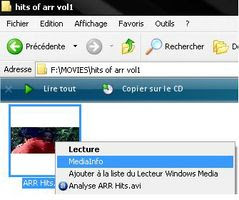

If you want to know your multimedia files contains which type of codecs (Audio and Video), you can use a freeware utility called Media info.
1. Download and install "Media Info".
2. Select your Multimedia File (audio or Video).
3. Right click on your multimedia file and choose "Mediainfo".
thats all.
Screen Shots:


If you've ever needed to extract a small section of a much longer video to share with friends or family, Free Video Cutter 1.1 is a dead-simple solution.
The application cuts, splits, or clips your large video files into smaller, easier to share files.This lightweight video editing tool works with several popular input video formats (including MPEG, DivX, Xvid, AVI, WMV, and MOV) and supports six different output formats. That's about all it does—simple but effective. As the name suggests, Free Video Cutter is a free download, Windows only.

Youtube - You know that site with videos and all. Yeah! It turns out that its quite popular and you happen to visit and use it quite often. Instead of just searching and playing here are some top Youtube URL tricks that you should know about:
1. View high quality videos
Youtube gives you the option to switch to high quality videos for some of the videos, however you can check if a video is available in high quality format by appending ‘&fmt=18′(stereo, 480 x 270 resolution) or ‘&fmt=22′(stereo, 1280 x 720 resolution) for even higher quality.
2. Embed Higher Quality Videos
While the above trick works for playback, if however you want to embed hig quality videos you need to append “&ap=%2526fmt%3D18″ and “&ap=%2526fmt%3D22″ to the embed url.
3. Cut the chase and link to the interesting part
Linking to a video where the real action starts at 3 minutes 22 seconds, wondered if you could make it start at 03:22? You are in luck. All you have to do is add #t=03m22s (#t=XXmYYs for XX mins and YY seconds) to the end of the URL.
4. Hide the search box

The search box appears when you hover over an embedded video. To hide the search box add ‘&showsearch=0′ to the embed url.
5. Embed only a part of Video

Just append ‘&start=30′ to skip first 30s of the video. In general you can modify the value after start= to the number of seconds you want to skip the video for.
6. Autoplay an embedded video
Normally when you embed a Youtube video and load the page, the player is loaded and it sits there waiting for you to hit the play button. You can make the video play automatically by adding ‘&autoplay=1′ to the url part of the embed code.
7. Loop an embedded video
Append ‘&loop=1′ to make the video start again without user intervention after it reaches the end.
8. Disable Related Videos

Publishing your content in the form of Youtube video? Don’t want people to see other people’s content that may be related but may as well be in competition to you? Just add ‘&rel=0′ to the end of the url part of the embed code and you just turned off the related video suggestions!
9. Bypass Youtube Regional Filtering
Some videos are only available in certain parts of the world. Your IP Address is used to determine your location and then allow or deny access to the video. Change the url from http://www.youtube.com/watch?v=
10. Download Video
Although not inherently a youtube trick but useful all the same for downloading videos. Just change youtube to kickyoutube in the url of the video and it will take you to kickyoutube.com with all the options for downloading the video you were watching.
Do you know of some similar Youtube URL tricks and hacks? Fire them in comments!
ImgBurn is a CD/DVD/HD-DVD/Blu-ray burning application that is fast, lightweight, and completely free.
Editor’s note: Disc compatibility depends on your CD/DVD/Blu-ray/HD-DVD writer hardware.
Core Features
Create images from files and folders - useful to backup your data
Burn data files or images to disc - to burn downloaded software or movies
Create image file from disc - for creating copies of discs
Easily build DVD Video, HD DVD Video, and Blu-ray Video discs - for creating discs playable in your DVD player
You can also use ImgBurn to burn standard Audio CDs from any music files such as MP3, WAV. It supports a variety of image formats and almost all types of optical discs, so you don’t need to look any further for your disc burning needs.
Installation is fast and simple with the 1.9MB download. You can get a Portable version of ImgBurn here or easily create one yourself. ImgBurn runs on Windows and on Linux under WINE.
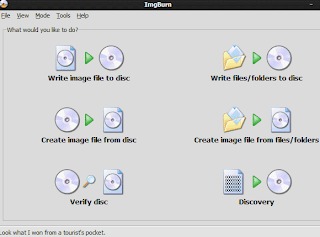
The welcome screen is very intuitive. You choose a mode of operation depending on your task:
Use the Write Mode to burn images to disc. For e.g., when burning a .ISO file to disc.
Use the Read Mode to create an image from a disc. For e.g., if you want to duplicate your friend’s disc, or create a backup copy of a disc, you would first create an image of the source disk.
Use the Build Mode to create data discs containing backup copies of your chosen files/folders.
Burning Image (Write Mode)
In the Write mode, you select the image file that you want to burn on disk, insert a blank disc, and click Burn.
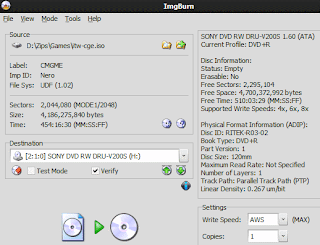
Creating Image from Disc (Read Mode)
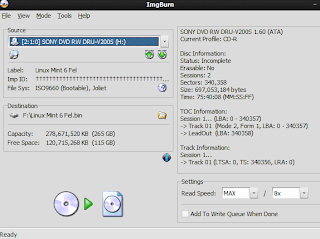
The Read Mode displays information about the disc, and you choose the destination file for the image. Simple!
Burn Data Files (Build Mode)
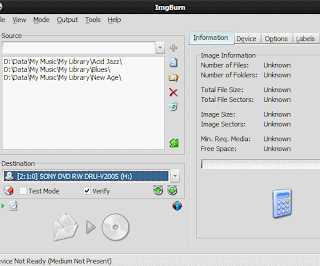
If you want to backup data to discs, use the Build Mode. You can also use this to burn “VIDEO_TS” folders to create regular DVDs that play in your DVD player. You select files/folders in the left pane, and click the Calculator icon to see how much space will be utilized on the blank disc currently inserted.
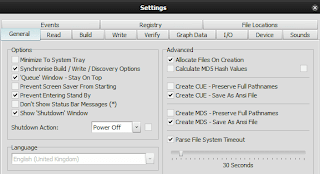
The Options Tab allows you to choose the file system on the target disc and other preferences. Advanced users can also change how file date/time stamps are set, create bootable discs, and set ISO9660/Joliet/UDF restrictions.
ImgBurn offers a plethora of options for intermediate and advanced users, via neatly organized groups in the Options dialog. It also has a fairly extensive list of command-line options, for automating it via batch files.
ImgBurn is fast, simple, and best of all, completely free. You will never need to pay for another disc burning software with ImgBurn in your arsenal!
What do you think? Does it give Nero Burning ROM or any other commercial burning application a run for their money? Let us know!
Editor’s note: Disc compatibility depends on your CD/DVD/Blu-ray/HD-DVD writer hardware.
Core Features
Create images from files and folders - useful to backup your data
Burn data files or images to disc - to burn downloaded software or movies
Create image file from disc - for creating copies of discs
Easily build DVD Video, HD DVD Video, and Blu-ray Video discs - for creating discs playable in your DVD player
You can also use ImgBurn to burn standard Audio CDs from any music files such as MP3, WAV. It supports a variety of image formats and almost all types of optical discs, so you don’t need to look any further for your disc burning needs.
Installation is fast and simple with the 1.9MB download. You can get a Portable version of ImgBurn here or easily create one yourself. ImgBurn runs on Windows and on Linux under WINE.

The welcome screen is very intuitive. You choose a mode of operation depending on your task:
Use the Write Mode to burn images to disc. For e.g., when burning a .ISO file to disc.
Use the Read Mode to create an image from a disc. For e.g., if you want to duplicate your friend’s disc, or create a backup copy of a disc, you would first create an image of the source disk.
Use the Build Mode to create data discs containing backup copies of your chosen files/folders.
Burning Image (Write Mode)
In the Write mode, you select the image file that you want to burn on disk, insert a blank disc, and click Burn.

Creating Image from Disc (Read Mode)

The Read Mode displays information about the disc, and you choose the destination file for the image. Simple!
Burn Data Files (Build Mode)
If you want to backup data to discs, use the Build Mode. You can also use this to burn “VIDEO_TS” folders to create regular DVDs that play in your DVD player. You select files/folders in the left pane, and click the Calculator icon to see how much space will be utilized on the blank disc currently inserted.

The Options Tab allows you to choose the file system on the target disc and other preferences. Advanced users can also change how file date/time stamps are set, create bootable discs, and set ISO9660/Joliet/UDF restrictions.
ImgBurn offers a plethora of options for intermediate and advanced users, via neatly organized groups in the Options dialog. It also has a fairly extensive list of command-line options, for automating it via batch files.

ImgBurn is fast, simple, and best of all, completely free. You will never need to pay for another disc burning software with ImgBurn in your arsenal!
What do you think? Does it give Nero Burning ROM or any other commercial burning application a run for their money? Let us know!

No need to install anything on your computer. Use the easy upload interface to convert your file. Your original file will not be affected, and you can choose your own file name for the converted file which will instantly download to your computer.
It supports many more file formats. View Site
Do you want to use your Firefox or Internet Explorer as a calculator? Follow these simple steps:
1. Set top right in-browser search to Google (it is Google by default)
2. Enter the expression to be evaluated
3. Do no press Enter; wait for a sec for the suggestion drop down, and here it is:

1. Set top right in-browser search to Google (it is Google by default)
2. Enter the expression to be evaluated
3. Do no press Enter; wait for a sec for the suggestion drop down, and here it is:

Subscribe to:
Posts (Atom)